


Roles and permissions software for DMCsEveryone sees the part of the business that is theirs.
Sales sees the deals, finance sees the money, the on-site crew sees the day, and a freelance guide sees the one program they are working on. Start from six ready-made roles, build your own step by step, and check what a role will see before anyone gets it.

From a preset to a role that fits
Start from a preset
Owner, Admin, Manager, Finance, Employee and Freelancer. They cannot be edited and are the same in every company. Copy one to start a role of your own.
Switch modules on
Thirty-four modules in eight areas, each with view, create, edit and delete, plus special permissions such as seeing every program.
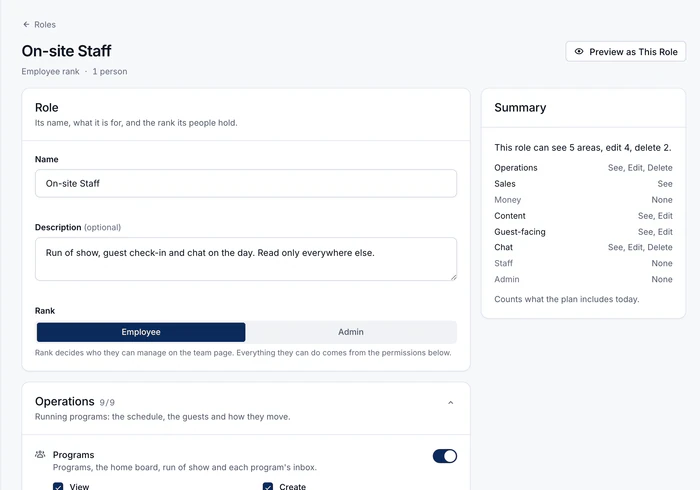
Preview the role
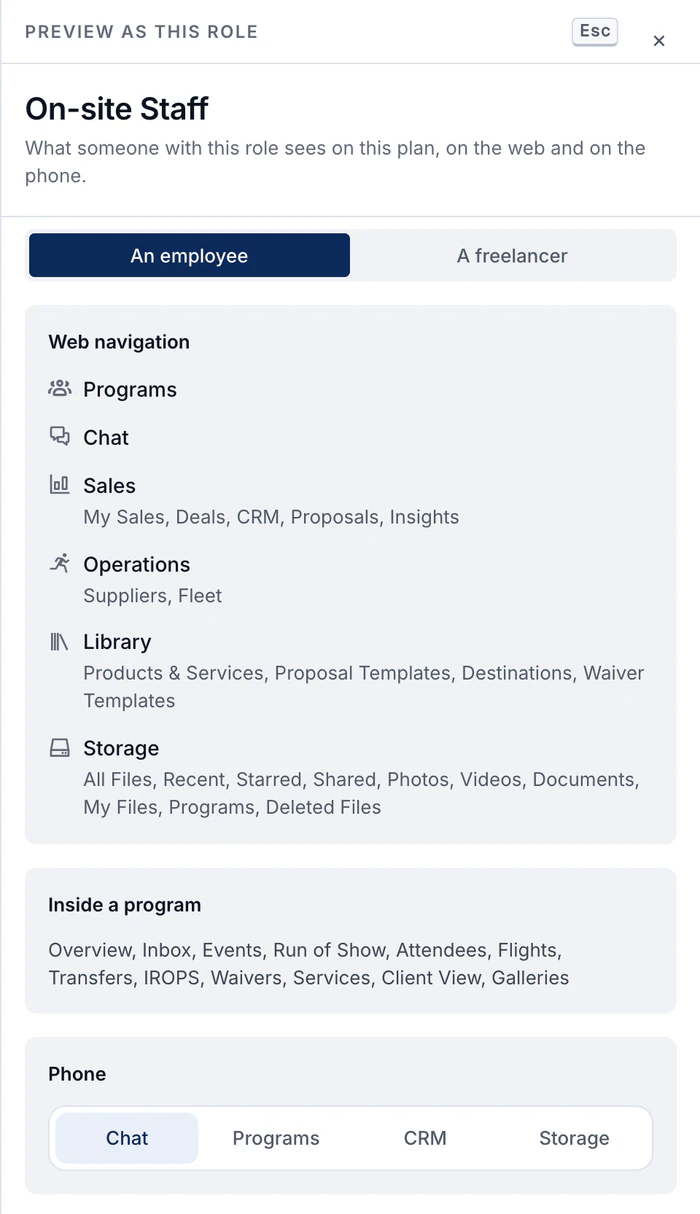
Preview as This Role shows the web navigation, the sections inside a program and the phone tabs that role would get.
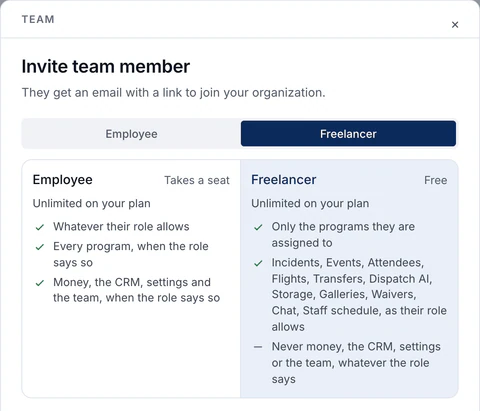
Invite
Invite people to any role, your own included, from the Team page. They get an email with a link to join your company.
Preview what each role can see before you invite someone.
A list of permissions is easy to get wrong. Preview as This Role turns it into the screens someone would really get: the menu on the web, the sections inside a program, and the tabs on their phone, as an employee or as a freelancer. If the finance role can see Operations when it should not, you find out here, not from the person who got it.
- Areas open to show their modules, and each action has a line saying what it allows
- A live summary counts what the role can see, edit and delete
- Modules your plan does not include show a lock and name the plan
- Every role change is recorded in the change history
Freelancers: in the app for free, on their programs only.
A season runs on guides, hosts, greeters and drivers who work one program and move on. A freelancer never takes a seat, and Core includes 5, Growth includes 12 and Scale includes 25. In return they only ever see the programs they are assigned to, and never money, sales records, settings or the team, whatever their role says, on the web and on the phone.
- Events, attendees, flights, transfers, storage, galleries, waivers and chat, as their role allows
- Check in from the program summary or a shift card on their phone, on plans with staff time tracking
- An External Staff record can be invited to the app in one step
- Company channels and team files stay closed unless someone adds them
Checked on our servers, on every action.
Hiding a menu item is only a convenience. The permission that matters is checked on our servers, on every action, from the web and the phone alike. Your company's data is also kept apart from every other company's. A role that cannot edit transfers on a laptop cannot edit them on a phone either.
- Every action is checked on our servers
- Someone who is not on a program cannot open it
- The phone app's tabs, sections and buttons follow the same role
- Money stays hidden from anyone without the Financials permission
- Billing and offices stay with the owner
- Included on every plan
Roles and permissions questions
What are the six presets?
Owner: everything, including billing and making someone else an owner. Admin: runs the company day to day, with every module, the team, imports and company settings, but not roles, offices, billing or ownership. Manager: every program, sales and suppliers, with the money, but not the team, settings or deleting whole records. Finance: invoices, client and supplier payments, costs and bills on every program, and can read programs, clients and proposals, but not guests, the team or settings. Employee: works on the programs they are assigned to, with no money, team or settings. Freelancer: sees the programs they are assigned to and talks to the team, with no money, sales records or settings. Presets cannot be edited and are the same in every company. Copy one to make your own.
What can a custom role control?
Thirty-four modules in eight areas: Operations, Sales, Money, Content, Guest-facing, Chat, Staff and Admin. Each module has view, create, edit and delete. Some have a special permission, such as seeing every program, not only the ones a person is assigned to. Each checkbox has a line saying what it allows, and a summary keeps count: “This role can see 5 areas, edit 4, delete 2.”
Do freelancers cost a seat?
No. A freelancer never takes a seat, and Core includes 5, Growth includes 12 and Scale includes 25. In return a freelancer only ever sees the programs they are assigned to, and never money, sales records, settings or the team, whatever their role says. An External Staff record can be invited to the app in one step.
Is it enforced, or just hidden?
Enforced. Our servers check the permission on every action, so hiding a button is only a convenience. Someone who is not on a program cannot open it at all: to them, it does not exist. The phone app asks the same servers the same questions. Billing and offices stay with the owner, whatever a role says.
What about modules our plan does not include?
They show a lock and name the plan that has them. You can still grant them. The permission starts to work when your plan includes the module, and the summary counts only what your plan includes today.
For every role
The freelance guide sees one program. The owner sees it all.
Start from six ready-made roles, build your own, and check what a role will see before anyone gets it.


See DMC Pilot in a 30-minute demo.
A 30-minute call with our team, using data like yours. If it fits, we set up your price list, suppliers and first programs with you.